
5v5 Soccer Team Rosters
Playing in a 5v5 Soccer Tournament? Follow these simple steps to submit your team roster.
Welcome to the Team Roster Process
We have updated our team roster process to make it easier for coaches & managers.
Just follow these simple steps and you'll be all set!
The Coach or manager adds the players to the roster in Exposure (the same system used to register the team for the event)
Your roster will be added on the Team level first. You will then need to select which players you are adding to the roster on an EVENT level.
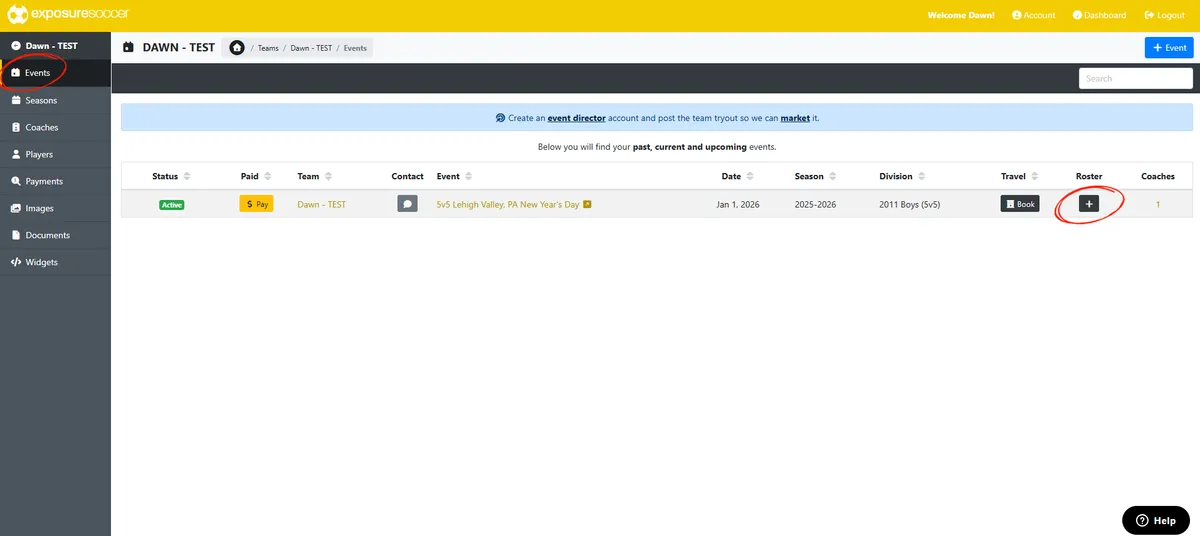
Click EVENTS on the left section. This will bring up all events you're registered for (or have registered for in the past)
Click + under "Roster" next to the upcoming event you are playing in.
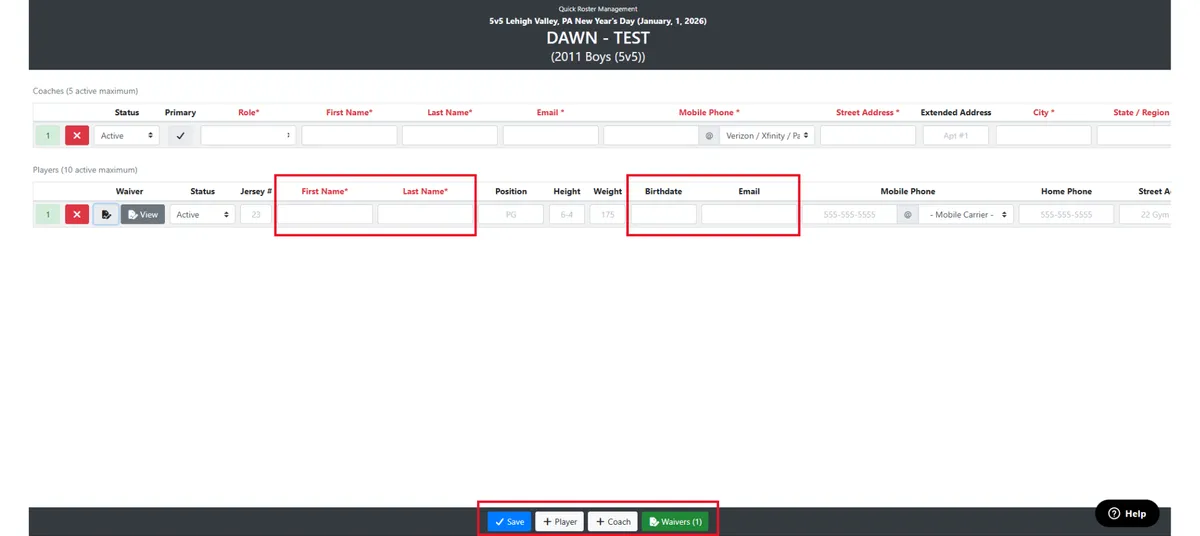
Add your player's first name, last name, and parent or guardian email address. Parents will be able to complete the date of birth when they complete the waiver.
Click Save at the bottom
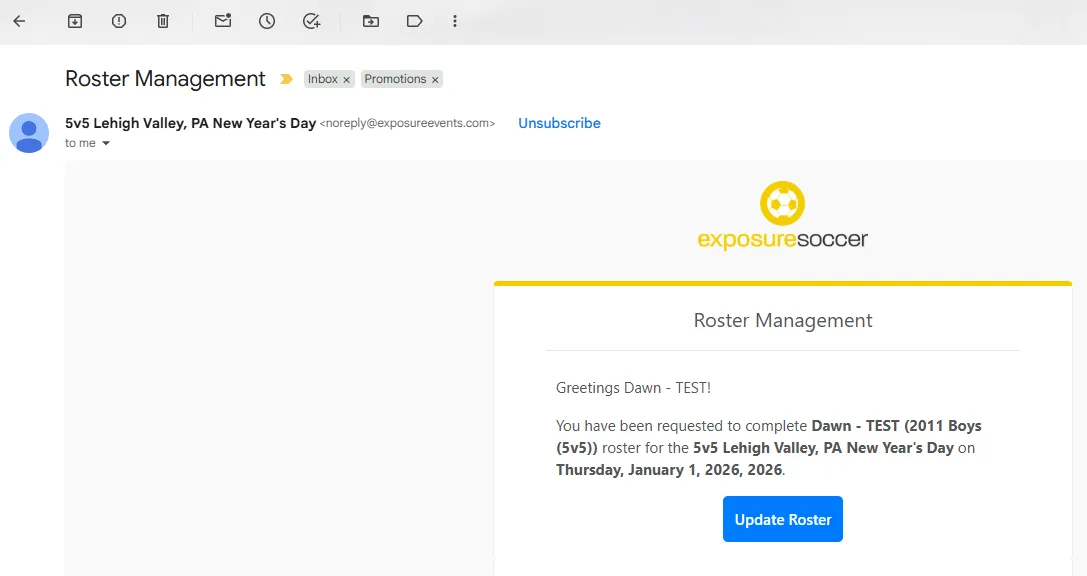
The waiver request is sent by the coach or manager to the email listed for each player (preferably, the player's parent or guardian).
For information on how to send the player waivers, click HERE.
The recipient clicks "Sign Waiver" and completes the form online.
DONE!
This new process allows for coaches to make adjustments to their roster through Exposure. It also allows them to track who has completed their waivers and who has not.
NOTE: The team rosters must be completed no later than the day prior to the event you're participating in. Please be sure to head to the check in table no later than 30 mins prior to the start of your first game to check your team in. Only one coach / manager is required at check in.
Sample Coach Account
Sample Roster
Sample Roster Request Email
Please reach out to the contact listed on the event page with any questions.
Thank you in advance for your patience and understanding as we work to improve our systems and processes!


